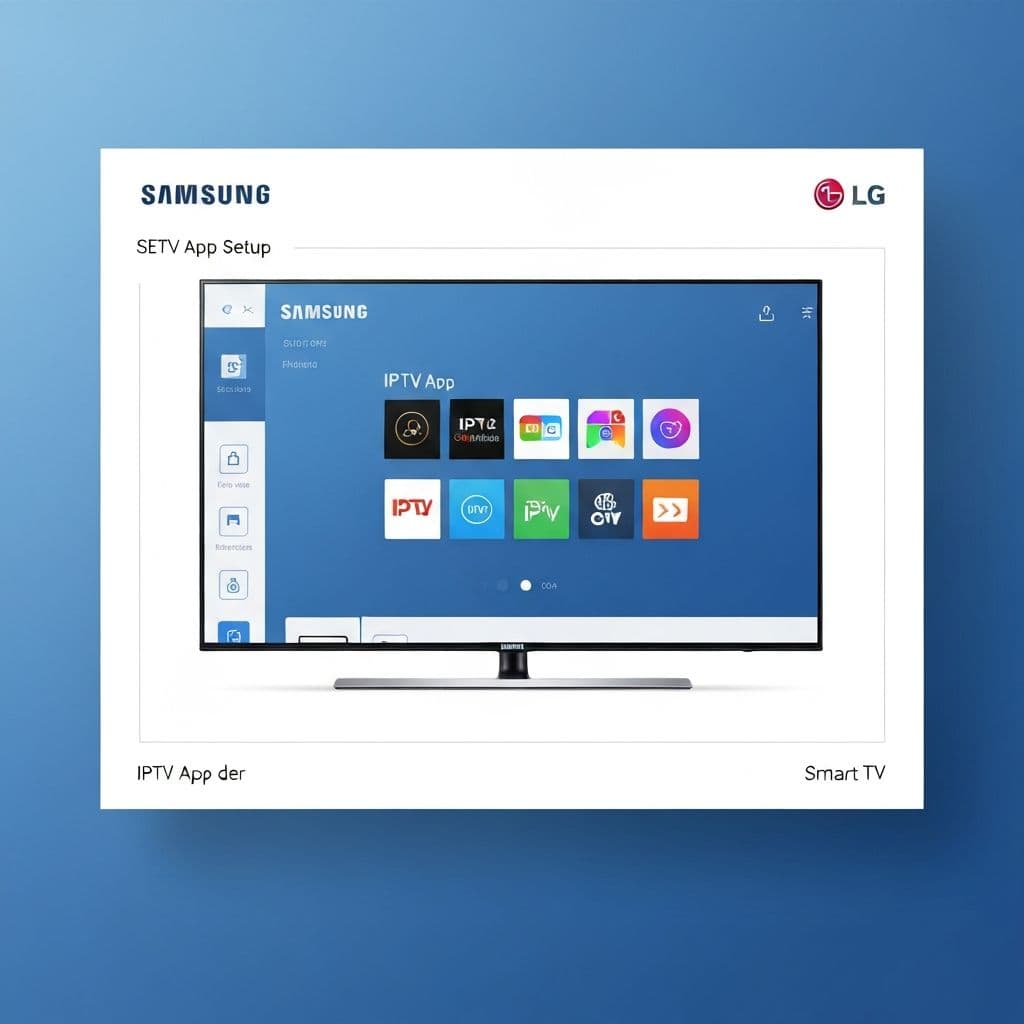
Installing IPTV on Your Smart TV
Smart TVs provide convenient IPTV streaming without additional devices. This guide covers installing the best IPTV service on Samsung and LG Smart TVs.
Method 1: Samsung Smart TV Setup
Step 1: Enable Unknown Sources
Navigate to Settings > Security > Unknown Sources and enable this option. Required for installing third-party IPTV applications.
Step 2: Install Smart IPTV App
Open Samsung App Store, search for "Smart IPTV" or your preferred IPTV player, and install. Some apps require one-time activation fees.
Step 3: Configure Your IPTV Service
Launch the Smart IPTV app and enter your M3U playlist URL provided by VistroTV. The app automatically loads your channel list.
Step 4: Activate and Start Watching
Follow on-screen activation instructions if required. Once activated, browse channels and start streaming premium content.
Method 2: LG Smart TV Setup
Step 1: Access LG Content Store
Press the Home button on your LG remote and navigate to the LG Content Store.
Step 2: Search IPTV Applications
Search for "IPTV Smarters" or "Smart IPTV" apps compatible with LG webOS. Install your preferred application.
Step 3: Enter Service Details
Open the installed IPTV app and input your VistroTV credentials: username, password, and server URL. These details are provided with your subscription.
Step 4: Enjoy Your Channels
After logging in, explore 30,000+ channels organized by categories. Favorite your preferred channels for quick access.
Alternative Setup Method: USB Installation
Some Smart TVs support USB app installation. Download the IPTV app APK file to a USB drive, connect to your TV, and install via file manager.
Optimizing Smart TV IPTV Performance
Network Connection
Connect Smart TVs via ethernet cable for best stability. If using WiFi, position your router close to the TV and use 5GHz bands.
Clear Cache Regularly
Periodically clear app cache to maintain smooth performance. Navigate to Settings > Apps > Your IPTV App > Clear Cache.
Update Firmware
Keep Smart TV firmware updated for optimal app compatibility and security. Check for updates in Settings > Support > Software Update.
Troubleshooting Common Issues
App Not Loading
Restart your Smart TV by unplugging for 30 seconds. Check internet connectivity and verify your subscription is active.
Buffering Problems
Test internet speed (minimum 10 Mbps required). Close background apps consuming bandwidth and consider upgrading your internet plan.
Channels Not Appearing
Verify M3U URL or credentials are correct. Contact VistroTV support for assistance with playlist configuration.
Why Use VistroTV on Smart TVs
VistroTV provides optimized M3U playlists compatible with all major Smart TV IPTV applications. Enjoy 4K streaming, organized channel categories, EPG support, and reliable service on your Samsung or LG Smart TV.
Get Started Today
Installing IPTV on Smart TV takes minutes. Subscribe to VistroTV and transform your Smart TV into a premium entertainment hub with thousands of global channels.